by Tom Morgan
Unexpected password reset emails don’t always mean your account has been hacked, but it’s important to know how to respond
If you’ve received a password reset email you didn’t request, it could be a sign that someone else is trying to access your account without your permission.
In many cases, these emails are triggered when someone enters your address on a login page – either by mistake or as part of an automated attack using leaked passwords from other websites. This can happen with a wide range of accounts, including email services, social media, online shopping sites and online banking.
Below, we explain how to tell if the email is genuine, and what steps you should take next if you’re sure you didn’t make the request yourself.
Why did I receive a password reset email?
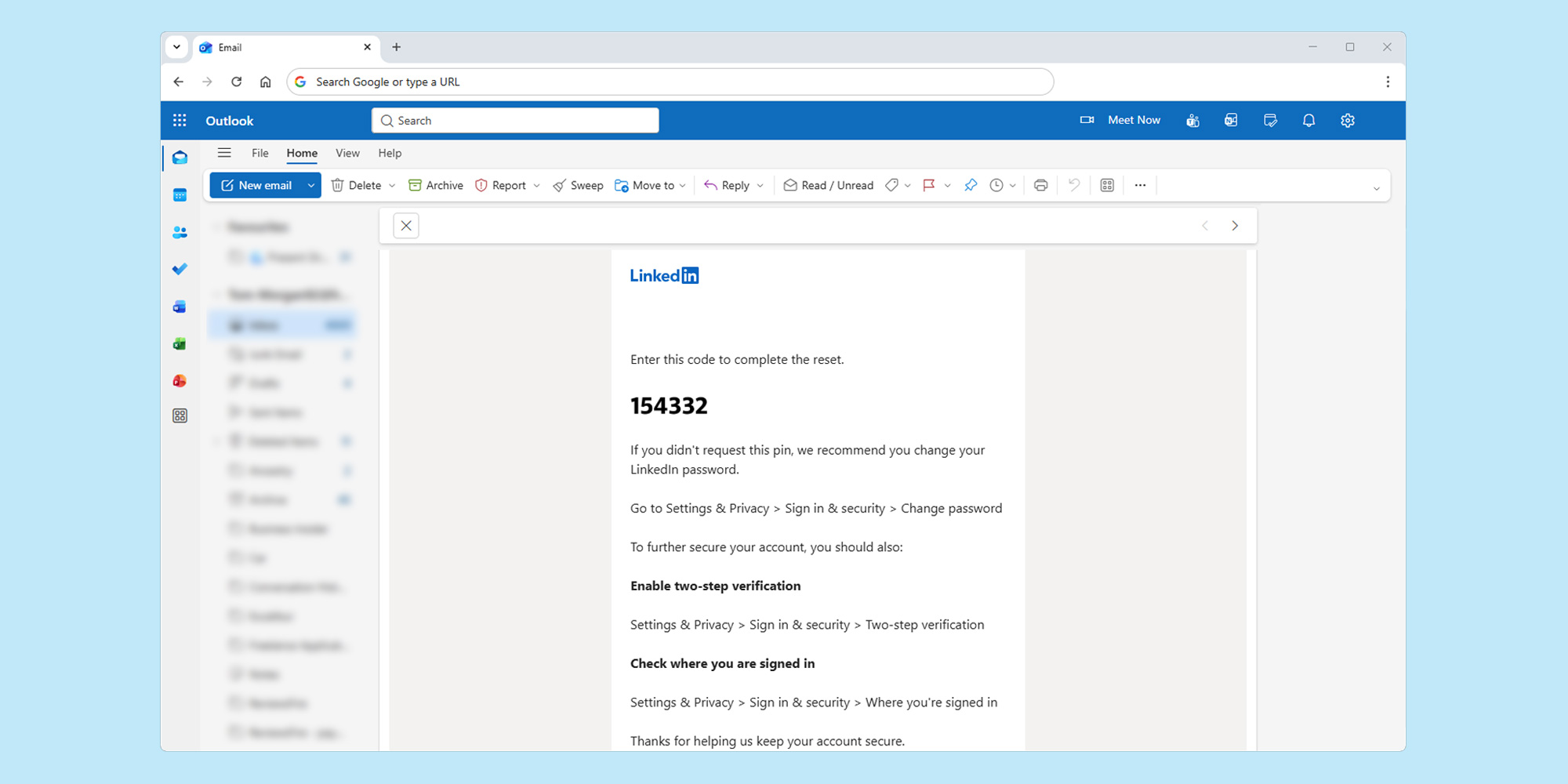
Assuming you didn’t request a password reset yourself, there’s a chance someone is trying to access your account. For example, a hacker might target your email inbox so they can reset passwords for your other accounts.
But crucially, receiving a password reset email doesn’t mean the attempt was successful.
Instead, it could simply be a sign that your email address is being targeted. In some cases, these attempts are automated – cybercriminals often use lists of leaked usernames and passwords from previous data breaches to try logging into accounts across multiple websites.
It can also be something more harmless, such as someone accidentally entering your email address when trying to reset their own account.
As a precaution, you can check whether your email address has appeared in a known data breach using the website Have I Been Pwned.
Is the email a scam?
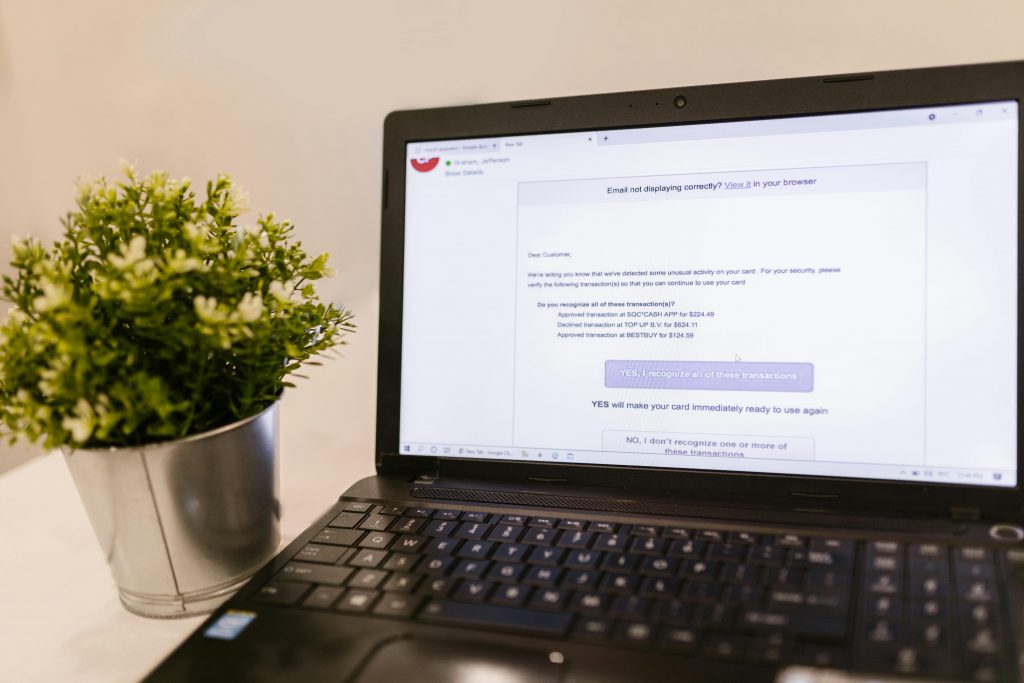
It could be. Scammers sometimes send fake password reset messages that appear to come from trusted companies such as Microsoft or Google.
These emails are designed to trick you into clicking a link and entering your details on a fake website. Check the sender’s address carefully and avoid clicking any links if you’re unsure. Scam emails often try to create a sense of urgency, so be wary of messages that push you to act quickly.
If in doubt, go directly to the company’s official website instead.
What to do if you didn’t request a password reset
1. Don’t click any links in the email
If the message is a scam, the link could take you to a fake website designed to steal your login details. Instead, open a new browser window and enter the company’s web address yourself to access your account safely.
2. Check the sender’s address
Look for anything unusual, such as misspellings, extra characters or a domain that doesn’t match the company’s official website. Be wary of addresses that look similar but use different endings (for example, .net instead of .com). You can also search the address online to see if other users have reported issues.
3. Check your account for unusual activity
Log in to your account directly (not via any links in the password reset email) and look for anything you don’t recognise, such as login attempts from unfamiliar locations or devices. Most services have a Security or Recent activity section where you can review this.
The exact steps will vary depending on the service you’re using. For example:
- On Gmail – on desktop, scroll to the bottom of your inbox and click Details next to Last account activity. On mobile, open the Gmail app, tap your profile picture, then Manage your Google Account > Security and sign-in. Review the Recent security activity and Your devices headings.
- On Outlook – on desktop, open your Outlook inbox, click the profile icon in the top-right corner and then My Microsoft account. From there, choose Security > See your sign-in activity.
- On Facebook – on desktop, click your profile picture (top right), then go to Settings & privacy > Settings > Password and security, and check Where you’re logged in. On mobile, tap the menu (three lines), then go to Settings & privacy > Accounts Centre > Password and security > Where you’re logged in.
If you do spot an unknown device or suspicious login attempt, change your password immediately and log your account out of any devices you don’t recognise.
4. Secure your account
Even if you don’t see any suspicious activity, it’s worth taking a few steps to strengthen your account security.
We suggest starting by ensuring your passwords are strong and unique. Avoid reusing passwords across different sites, as this makes it easier for attackers to gain access if your details are exposed in a data breach. See how to create secure passwords for more help.
Turn on two-factor authentication (2FA) if it’s available. Once enabled, it makes your accounts much harder to access without permission by requiring a second step when you sign in, such as entering a code sent to your phone or generated by an authenticator app. It’s also worth reviewing your account recovery settings, such as backup email addresses and phone numbers, to make sure they haven’t been changed without your knowledge.
If your account is protected with a strong password and 2FA, and you can’t see any unusual activity, it’s usually safe to ignore a one-off password reset email. However, repeated requests could indicate someone is trying to access your account, so it’s worth keeping an eye on things.